
Stitch a panorama from raw files for free
Stitch raw photos into a panorama in your browser with Madosuite Light: pick a projection, fill the edges with boundary warp, crop and export. Free.
You can stitch a panorama from raw files for free in your browser with Light, the raw developer in Madosuite. Its Photo Merge joins your frames, lets you choose a spherical, cylindrical or perspective projection, and can warp or crop away the empty edges.
There is no subscription and no account, and your raw files stay on your own device. Here is the whole process.
Shoot frames that stitch well
A clean panorama starts with how you shoot:
- Overlap each frame with the next by a good margin, roughly a third of the frame. The merge needs shared detail to line frames up.
- Lock your exposure and white balance if your camera lets you, so the frames match.
- Turn around the lens, not your body. Rotate the camera in place, ideally on a tripod. Moving sideways makes near objects shift against far ones, which is hard to stitch.
- Shoot in portrait orientation for a taller result you can crop.
- Watch for movement. People and cars that cross between frames can appear twice or cut in half.
Why stitch in Light
- It works on raw files. Light opens DNG and raws from Canon, Sony, Nikon, Fujifilm, Panasonic, Leica, Pentax and Olympus, as well as JPEG and TIFF.
- It stays on your device. Madosuite runs a Linux machine in your browser tab. Files go into its home folder in the browser and are not uploaded to us.
- It is non-destructive. Your original frames are never changed.
Stitch the panorama
- Go to madosuite.com and open the desktop.
- Open the Store and add Light. It takes one click.
- Open Files, press Upload, and pick all the frames for the panorama.
- Open them with Light.
- Select the frames in the library.
- Use Photo Merge to merge them as a Panorama.
- Choose a projection:
- Spherical for wide views, including very wide ones.
- Cylindrical for a wide row of frames where you want straight vertical lines.
- Perspective for a few frames, when straight lines should stay straight, such as buildings.
- Use boundary warp to stretch the image into a full rectangle, or auto crop to cut away the empty edges.
If you shot each position as a bracket, Light can merge an HDR Panorama in one go, and the result is written as a DNG. For brackets alone, see merge bracketed photos into HDR.
Crop and develop
With the panorama merged, finish it like any photo:
- Crop and straighten. Choose a free crop or a ratio such as 16:9, and use the thirds or golden-ratio overlay. Drag to straighten the horizon; Light keeps the largest crop inside the image.
- Upright can level the horizon or fix converging verticals.
- Light and colour. Even out the sky with Highlights and Dehaze, open the shadows, and set white balance.
- Masks. A linear gradient over the sky is often enough.
Export it
Export as JPEG to share, or as TIFF or DNG to keep the most data. Export lets you set the size, which matters for very wide images: a long edge that suits the screen or the print you plan. Then open Files and download the file.
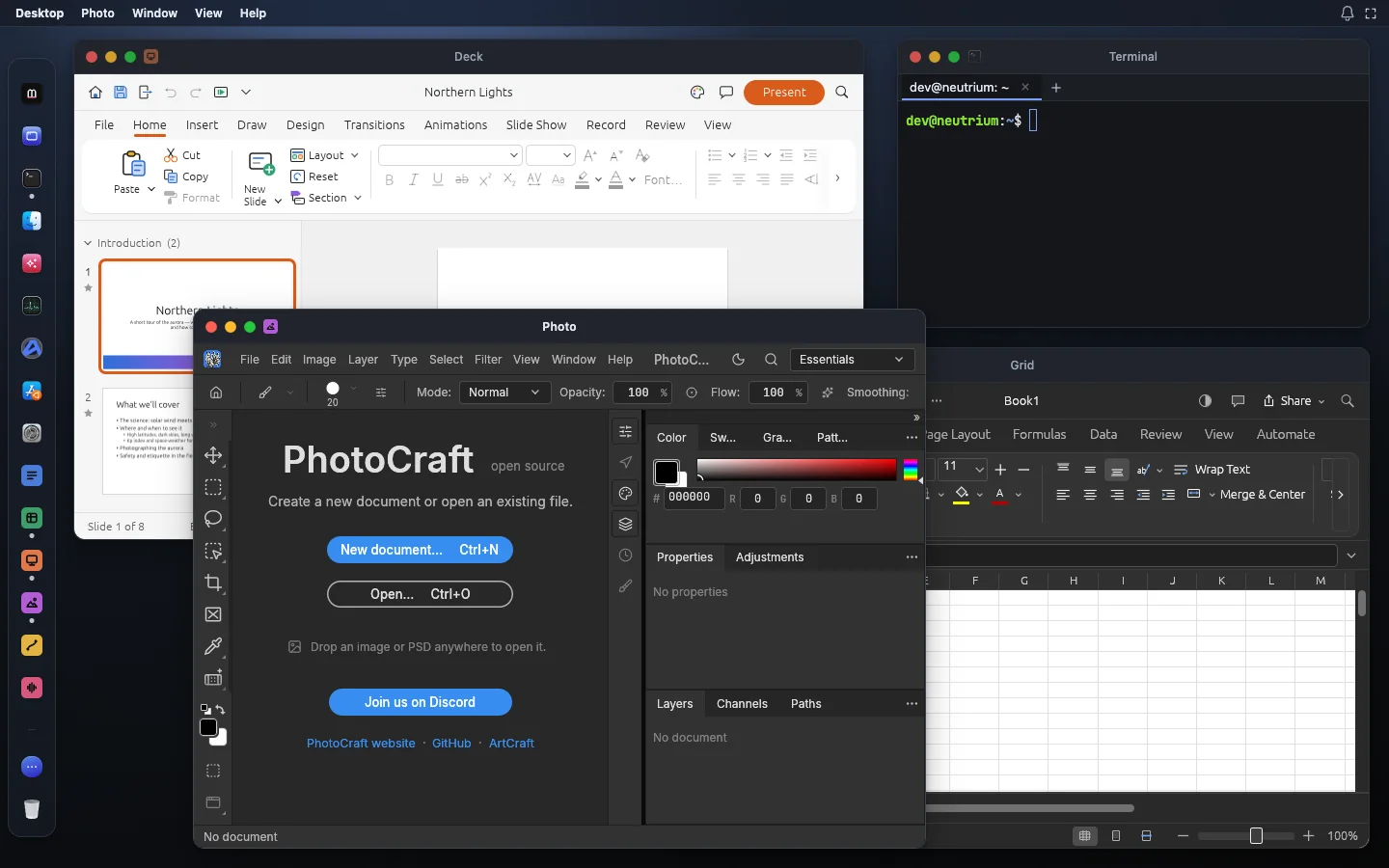
You can keep other apps open next to Light on the same desktop, for example Photo, if you want to add type or graphics to the finished panorama.
Limits
Light is an alpha, “young and moving fast” in its own words. Before a big project, know these limits:
- Some raws do not decode yet: some Canon CR3 variants, compressed Olympus and Samsung raws, and Nikon HE NEF. Light shows their embedded previews instead, so check that every frame opens as a real raw.
- Camera colour is estimated, not measured, for many cameras.
- No lens profiles of its own yet. Lens corrections embedded in DNG files and some camera data are used.
- WebGPU in the browser is still in progress, so merging many large raws can take time.
Light is one of the ArtCraft team’s open-source Crafting Apps (MIT or Apache-2.0), under a Madosuite name.
Looking for a replacement for paid raw software? Read Lightroom alternatives, or start with the app on the Light page.