
Open a Krita .kra file without Krita
Open a Krita .kra file in your browser with Madosuite Photo, see its layers, and save it as PSD or PNG for someone who does not use Krita.
You can open a Krita .kra file without installing Krita: open it in Photo, the image editor in Madosuite, which runs in your browser tab. Photo reads the file’s paint layers, groups, blend modes and transparency masks, so you see the artwork as layers, not a flat preview.
Here is how, and how to pass it on as a PSD or a PNG.
Who sends KRA files
.kra is Krita’s own format. Illustrators, comic artists and concept artists who paint in Krita save their working files as KRA. If you are the art director, the client, the editor or the friend on the other end, you may receive one and have no Krita on your computer. Maybe you cannot install software on a work laptop, or you only need to look once.
Why open it in Madosuite
- Nothing to install. Madosuite is a desktop of apps in a browser tab.
- The file stays with you. Madosuite runs a Linux machine in the browser on your own device. Files go into its home folder in your browser and are not uploaded to us.
- No account. Signing in with 0cloud is optional.
How to open a KRA file
- Go to madosuite.com and open the desktop.
- Open Files from the dock.
- Press Upload and pick the
.krafile. - Open the file with Photo.
- Look at the Layers panel. Groups and paint layers appear as they were in the file, with their blend modes.
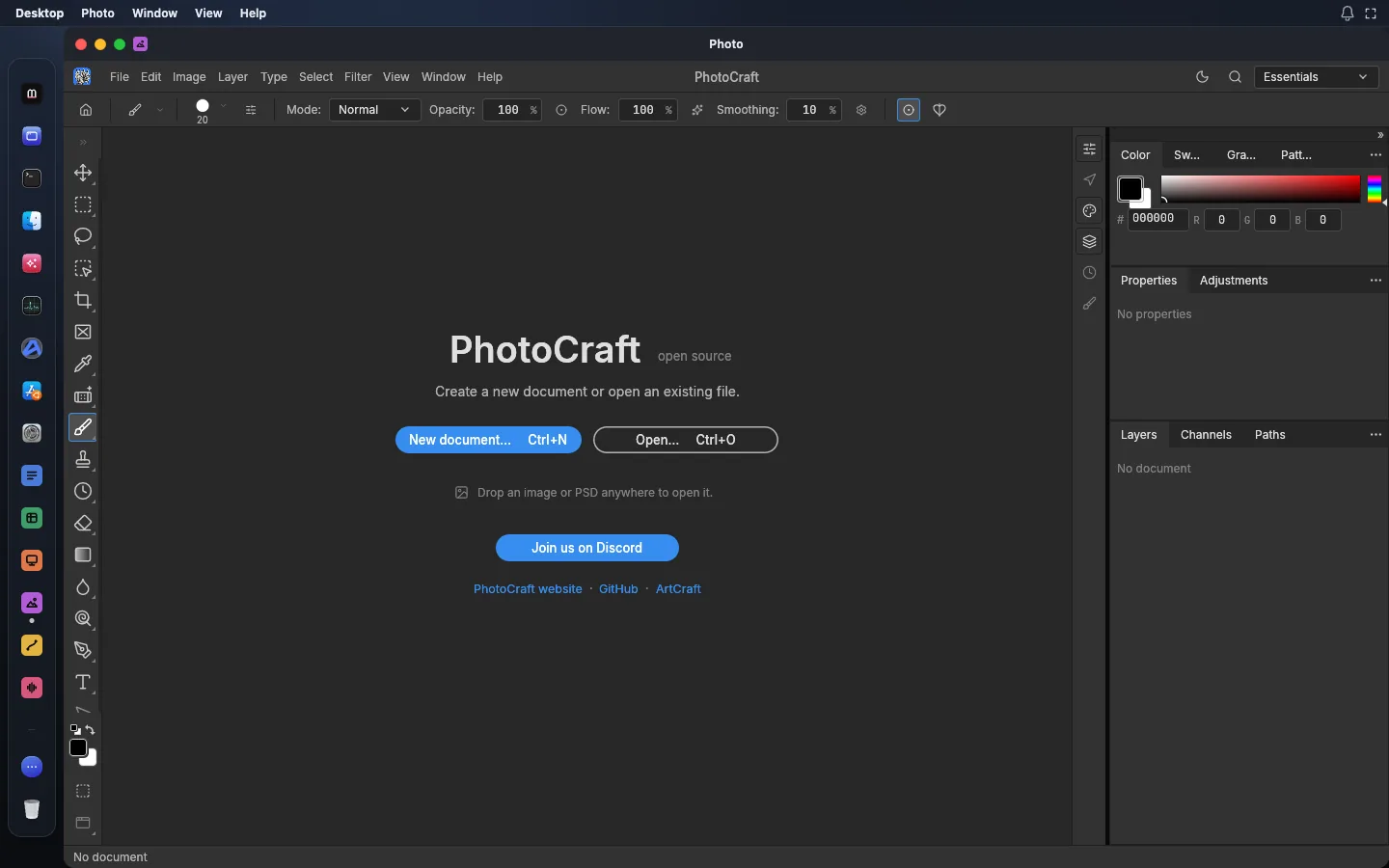
Photo reads KRA files. It does not save them. To send work back, use one of the formats below.
Save it for the next person
Pick the format that fits who gets the file next.
- PSD, for a Photoshop user. Save as
.psd. The layers you saw in Photo go into the PSD, so the next person can keep editing. See KRA to PSD. - OpenRaster (.ora), back to a Krita user. Photo reads and writes OpenRaster with layers, groups and blend modes. Krita, MyPaint and GIMP also use this format, so it is a good way to send layered work back to the artist.
- PNG or JPEG, to look at or post. Use Quick Export to PNG, or Export As to pick a format, quality and scale with a preview and a size estimate.
When the file is saved, open Files and download it.
Edit before you pass it on
Because the layers come in as layers, you can do more than look. Hide a layer, move a group, add a type layer with a note, or put an adjustment layer such as Levels or Curves on top. Photo has 16 adjustment layers, layer masks and full history, so every step can be undone.
Many apps can be open at once in their own windows, so you can keep Files beside Photo while you work.
What may not carry over
Know the limits before you rely on the result.
- Only some layer kinds are listed. Photo’s documentation says it reads KRA “with paint layers, groups, blend modes and transparency masks”. Other kinds of Krita layers are not on that list. Compare what you see with a PNG from the artist if something looks missing.
- Krita’s brushes and settings are not on that list either. Expect the pixels and the layer structure, not the artist’s tools.
- Photo cannot save KRA. Send OpenRaster back to a Krita user instead.
- Photo is early alpha. Its documentation says “it is not yet a Photoshop replacement for daily professional work”. Some tools are missing, and there are no AI or generative features.
- Higher bit depths. If the file is 16-bit, exporting to JPEG or WebP reduces it to 8-bit, with a warning. PNG keeps 16-bit.
Keep the original .kra file, and treat it as the master copy for the artist.
Related
Start with the app on the Photo page.